Transactions Tab
The Transactions tab contains summary statistics of the transactions made by this client along with a paginated list of all their transactions and options to create and manage transactions.
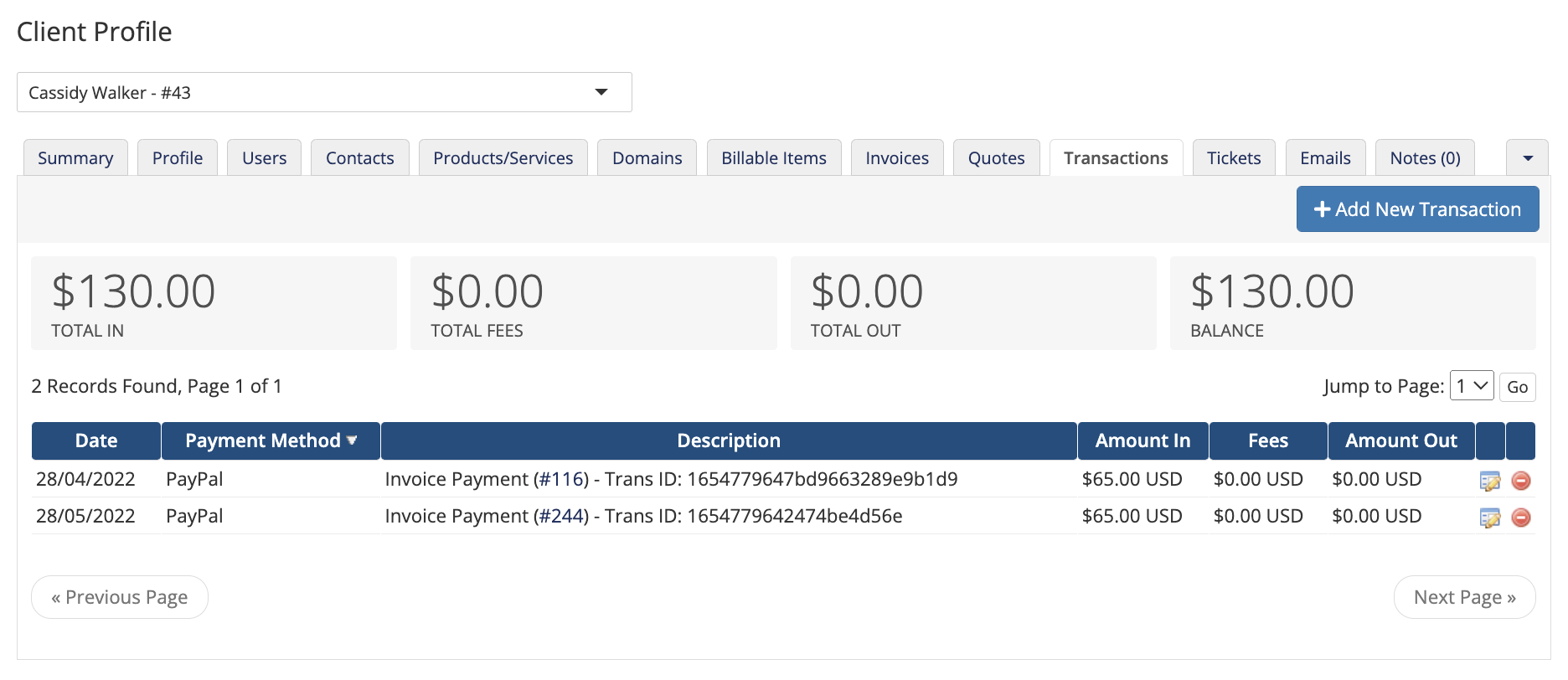
You can access this tab when you view a client’s profile at Clients > View/Search Clients.
For more information, see Transactions.
Transactions List
The paginated list displays all of the client’s transactions.
- Click the table headings to change the sorting order.
- Click the invoice number under Description to view the associated invoice.
- Click the edit icon to edit the transaction.
- Click the red delete icon to delete the transaction.
Records Per Page
The Records to Display per Page setting in the General tab at Configuration () > System Settings > General Settings determines the number of transactions per page.
Add New Transaction
Click Add New Transaction to record a new transaction against this client’s account. When you manually add a transaction, you can include the following transaction information:
- Date — The date of the transaction.
- Description — A description for the transaction. If you do not specify an Invoice ID value, you must enter a description.
- Transaction ID — A transaction ID, if one exists.
- Invoice ID — The ID for an invoice in WHMCS, if one is associated with the transaction.
- Payment Method — The payment method by which you received the transaction.
- Amount In — The amount that you received. Omit any currency symbols.
- Fees — The amount for any fees that the gateway charged for this transaction.
- Amount Out — The amount that the system send to the customer (for refunds).
- Add as Credit — Check to apply the transaction against the client’s credit balance.
Last modified: 2026 August 4