Configure Slack Notifications
Configuring notifications with Slack® allows you to receive notifications in your Slack channels when events occur within WHMCS.
Configuring Slack Notifications
To configure notifications through Slack:
1. Create a Slack app.
Log in to your Slack Workspace and go to https://api.slack.com/apps.
Create a new Slack app:
- Click Create New app. You will need to log in if you haven’t already.
- Select From scratch.
- Enter a name for the app (for example,
WHMCS). - Choose the workspace you wish to add the app to and click Create APP.
- Select OAuth & Permissions.
- Scroll to Scopes: Bot Token Scopes.
- Click Add an OAuth Scope and assign the following permissions:
- channels:join
- channels:read
- chat:write
- groups:read
- Scroll up and click Install to [Workspace Name], where
Workspace Nameis the name of your Slack workspace. - On the OAuth consent screen, click Allow.
2. Copy the app access token.
Copy the Bot User OAuth Access Token value. You will need this to enter in WHMCS.
3. Go to your notification settings.
In WHMCS, to go Configuration () > System Settings > Notifications.
Under the Slack notification provider, click Configure.
4. Paste the access token into WHMCS.
Paste the Bot User OAuth Access Token that you copied into OAuth Access Token.
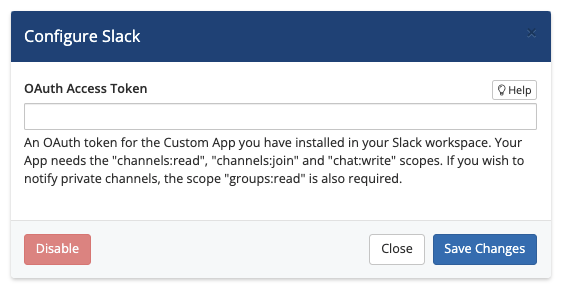
5. Save your changes.
Click Save Changes. WHMCS will attempt to verify the access token.
- If verification fails you will receive an error message. Check whether you entered the access token correctly, verify that it has all the required scopes, and try again.
- If verification succeeds, the window will close.
6. Create notification rules.
Create the desired notification rules. WHMCS will automatically join your Slack channel when you define it in a notification rule.
Private Channels
To send notifications in private channels:
- Open the Slack app.
- Go to your private channel.
- Invite the app to the channel with the following command:
Replace/invite @app_nameapp_namewith the name of your app. For example:/invite @WHMCS Test App - Send the message.
The app will join the private channel and become available for selection in WHMCS when creating a notification rule.
Last modified: 2026 August 4