Configure VAT and Collect VAT IDs for Europe
You can configure WHMCS to charge Value-Added Tax (VAT) on purchases and collect VAT IDs from clients on the order form.
Configure Tax Rules for VAT
To configure WHMCS to collect VAT:
1. Go to your tax configuration.
Log in to the WHMCS Admin Area and go to Configuration () > System Settings > Tax Configuration.
2. Enable tax support.
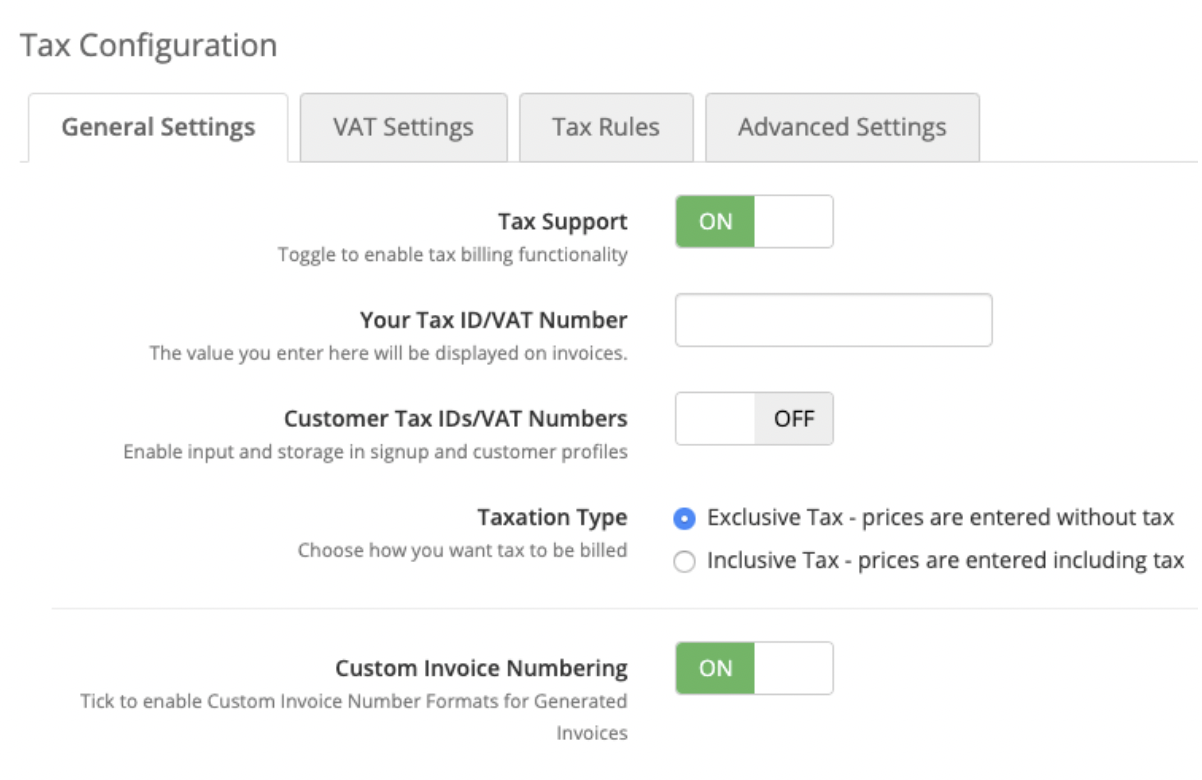
Set Tax Support to ON.
3. Enter your VAT ID number.
To display your own VAT ID on invoices, enter it for Your Tax ID/VAT Number.
4. Enable customer VAT numbers.
Set Customer Tax IDs/VAT Numbers to ON.
5. Save your changes.
Click Save Changes.
6. Enable VAT Mode.
Select the VAT Settings tab, and then set VAT Mode to ON.
7. Enter a VAT label display name.
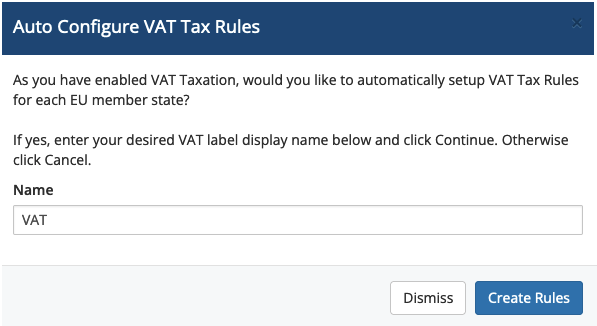
For Name, enter the VAT label display name that you want to use, and then click Create Rules.
8. Select a VAT number validation method.
Select a VAT number validation method for VAT Number Validation. You can choose from the following options:
- Do Not Validate (Disabled) — Do not perform any validation on VAT numbers.
- Validate Format During Checkout — Only validate whether the entered VAT number is valid for the selected country during checkout.
- Validate with Relevant Authority — Only validate the VAT number with the relevant VAT authority.
- Validate at Checkout and with Relevant Authority — Validate the VAT number format during checkout and validate the VAT number with the relevant VAT authority.
9. Select the taxed items and products.
Click Create Rules. Then, choose the items and products to tax using this configuration.
Last modified: 2025 December 16