Set Up Email Importing
You can import support ticket reply emails into WHMCS using IMAP or POP3 and an email account.
- Email piping and email importing use separate configurations and are distinct methods of importing email replies.
- Email importing is available on both WHMCS Cloud and self-hosted WHMCS installations. Email piping is only available for self-hosted WHMCS installations.
- We recommend using email importing with OAuth2. This allows you to use OAuth security with your Google or Microsoft accounts. For more information, see Set Up Email Importing with Google and Set Up Email Importing with Microsoft.
- Email importing is part of our support ticket system and does not impact how your WHMCS system sends mail to admins and clients. For steps to configure system mail, see Mail Providers.
Set Up Email Importing
To do this:
Create the email account that your support department will use.
Make certain that you use a different email account for each support department.Check to ensure that Imap-SSL/Pop3-SSL is enabled in your WHMCS installation’s PHP configuration.
For help updating your PHP configuration, contact your hosting provider or system administrator.In the WHMCS Admin Area, go to Configuration () > System Settings > Support Departments.
Create a new support department, making sure to enter the correct hostname and port for your email account.
Use your preferred method to create a cron job that runs the
/crons/pop.phpscript every5minutes.Set up your email accounts:
- For POP3 or IMAP, create a unique email account on your mail server for each support department.This must be a mailbox; an alias is not sufficient.For steps to enable email importing using POP3 and IMAP, see Set Up Email Importing.
- For OAuth 2 with Google or Microsoft, configure your mail service provider and create an app for it.
- For steps to enable Google, see Set Up Email Importing with Google.
- For steps to enable Microsoft, see Set Up Email Importing with Microsoft.
- For POP3 or IMAP, create a unique email account on your mail server for each support department.
In WHMCS, go to Configuration () > System Settings > Support Departments.
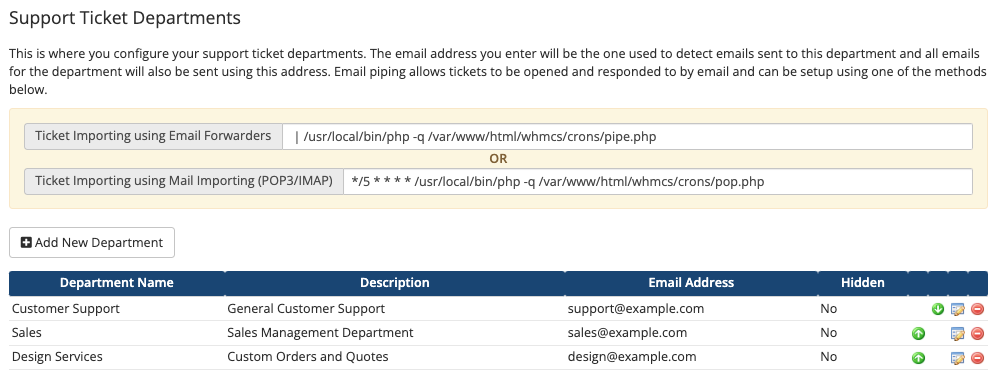
Create a new department and enter the top section of information or, for existing departments, click Edit.
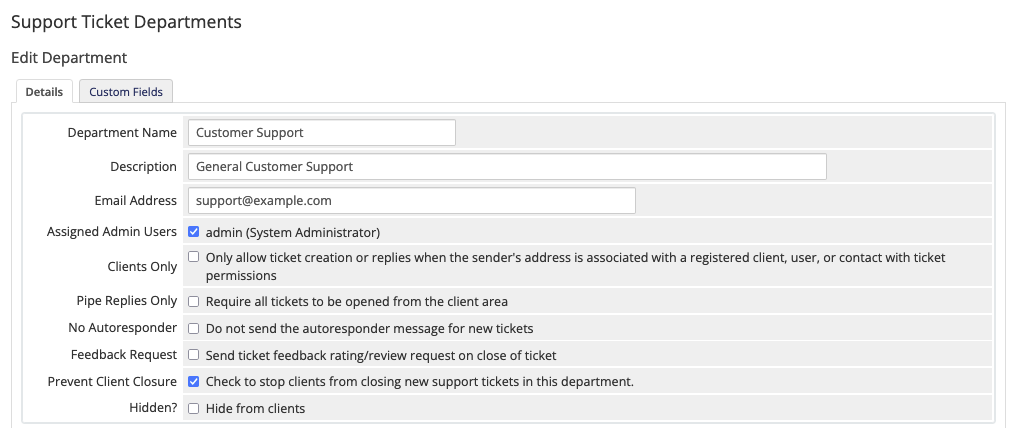
Enter the email information for the department:
- Select a service provider.
- Enter the appropriate details for your service provider.
- If you selected OAuth2 as your authentication type for Google, enter your email address and the ClientID and Client Secret values that you generated. Then, click Connect.
Under Import Limits, configure the limits on the email that each import cron run processes.
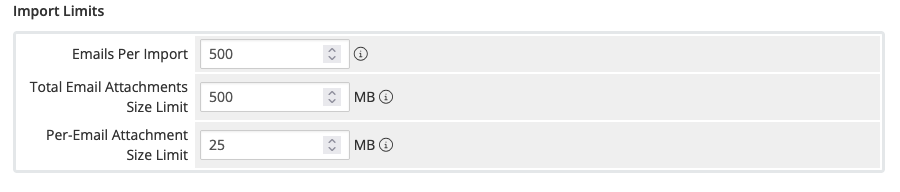
You can configure the following settings:- Emails Per Import — The maximum number of email messages to import per cron run. Any messages beyond this limit remain on the server and import during the next run.
- Total Email Attachments Size Limit — The maximum combined size, in MB, of attachments that a cron run writes to disk. After a run reaches this limit, WHMCS holds any remaining emails with attachments for the next run, while it continues importing emails that don’t have attachments.
- Per-Email Attachment Size Limit — The maximum size, in MB, of a single email’s attachments. If an email’s attachments exceed this limit, WHMCS still imports the email as a ticket but omits the attachments and lists their file names in the ticket body. This value must be less than or equal to the Total Email Attachments Size Limit value.You cannot disable these limits.
If you use a self-hosted WHMCS installation, set up a cron job to run the
pop.phpfile using the Ticket Importing using Mail Importing (POP3/IMAP) command that displays at Configuration () > System Settings > Support Departments.
We recommend that you set this to run every five minutes.If you use WHMCS Cloud, the system configures this cron job for you automatically.
Workaround for SSL Handling
In some cases, your server may not handle SSL with POP3 correctly.
To work around this issue:
- Create another POP3 email account using a different domain name that does not require SSL.
- Forward your email account to that email address.
- In WHMCS, use POP3 to retrieve the email from the new email address.
Last modified: 2026 August 25