Invoices
The Invoices tab allows you to configure how WHMCS generates and sends invoices and applies late fees.
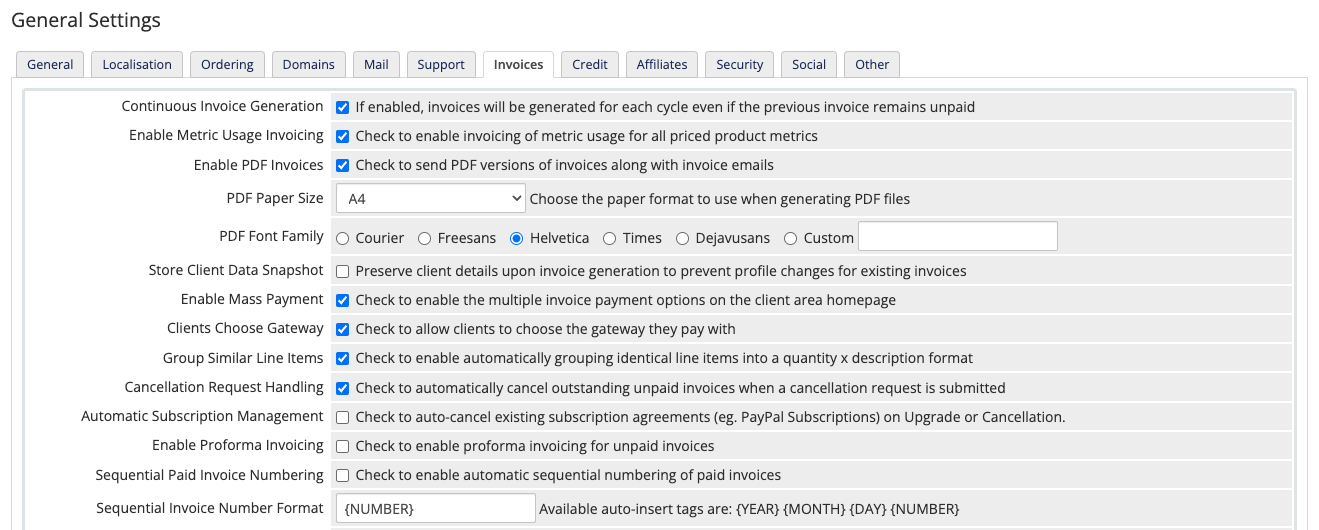
You can access this tab at Configuration () > System Settings > General Settings.
Continuous Invoice Generation
Whether to use Continuous Invoice Generation. When you enable Continuous Invoice Generation, the system creates invoices regardless of whether unpaid invoices exist for the service. Use this setting when the product has a minimum term and the client must pay all invoices.
- The system generates invoices if the service status is Pending, Active, or Suspended.
- The system will not generate invoices if the service status is Completed, Cancelled, or Terminated.
If you disable this, the system will not generate additional invoices until the client pays the unpaid invoice.
Enable Metric Usage Invoicing
Whether to bill any enabled billing metrics for a given product at the time of service renewal. Each metric generates a line item that reports the total usage value and a breakdown of the system’s calculation of the billed amount.
- The line item’s description will vary based on the pricing scheme type, the pricing brackets, and the incurred usage.
- All possible descriptions are available for translation via the language file system.
Service termination triggers the creation of a one-time usage invoice for current snapshot metrics and unbilled usage to date. This will look similar to the standard renewal invoice excluding the service.
Enable PDF Invoices
Whether to attach a copy of the invoice to invoice notification emails as a PDF file.

PDF Paper Size
The size of the individual pages in a PDF invoice. For example, the A4 paper size is slightly larger than a standard letter, allowing you to include more information per page.
PDF Font Family
The font to use in PDF invoices and quotes.
Store Client Data Snapshot
Whether to save clients’ name, addresses, and custom field data (for example, VAT numbers) during invoice generation. Both Client Area and PDF invoice views will display the name and address information as it was at the time of initial creation. Editing the client or billing contact only causes future invoices to change; existing invoices will keep their current addressees.
After you enable this, the system will begin to save invoice data in this way.
Enable Mass Payment
Whether to allow clients to pay several invoices in one transaction using the options in the Due Invoices section of the Client Area Homepage.
Clients Choose Gateway
Whether to allow changes to the payment gateway that customers use to pay each invoice. If you disable this, each invoice must use the payment gateway that the client chose during signup.
Group Similar Line Items
Whether to group similar items on a single invoice. If you enable this setting, WHMCS automatically groups products, services, addons and domains into a single invoice if they are due on the same date with the same payment method and the same person. The customer only receives a single invoice and only needs to make a single payment. This, then, reduces your transaction fees.
For example, enabling this automatically groups any identical line items on these invoices into a quantity x description format. For example, three entries of Monthly Lease $15.95 would become one line item for 3 x Monthly Lease @15.95 $47.85.
- Only the client invoice uses this format. In the Admin Area, you will still see the individual line items.
- If you have a client for whom you do not wish this grouping to occur, you can disable it with the Profile tab in the client’s profile or in a client group.
Cancellation Request Handling
Whether to cancel any unpaid invoices for a service automatically when a client submits a cancellation request.
Automatic Subscription Management
Whether to automatically cancel PayPal® Basic and 2CheckOut subscriptions if any of the following circumstances occur:
- The client or an admin submits a cancellation request.
- An admin cancels the order or sets it to fraud via the Admin Area.
- The API passes
cancelsub=trueto cancel the order or set it to fraud. - The client or an admin submits an upgrade order for the service.
I. It does not support automated subscription cancellation or other management actions via API for subscription profiles that start with S.Enable Proforma Invoicing
Whether to cause invoices to display Proforma invoice when the status is Unpaid, Refunded, Cancelled, Collections, or Payment Pending. Invoices will display Invoice when the status is Paid.
Sequential Paid Invoice Numbering
Whether to number paid invoices separately from unpaid invoices.

Sequential Invoice Number Format
The format for sequential invoice numbering. The default value of this is {NUMBER}, which will contain only the value from Next Invoice Number. The format can contain any text in the invoice number that the client will see.
Next Paid Invoice Number
A number to use to number the next invoice that WHMCS generates.
Late Fee Type
Whether the one-time fee on late payments is a percentage or a fixed amount.

Late Fee Amount
An amount to charge to customers who fail to pay an invoice by the due date.
Set this to 0 to disable late fees.
Late Fee Minimum
The minimum amount to charge for late fees. For example, if the late fee is $0.50 and this value is 1.00, the system will charge the client $1.00.
Accepted Credit Card Types
The types of credit cards to accept via your payment gateway.
Ctrl and left-click to select multiple cards.Issue Number/Start Date
Whether to prompt customers to enter the issue number and start date that some card types require.
Invoice # Incrementation
The amount by which each invoice number will increase. For example:
- Entering
1would cause the first four invoice numbers to be1,2,3, and4. - Entering
2would cause the first four invoice numbers to be1,3,5, and7.
999.Invoice Starting #
The invoice number that WHMCS will start with when it generates the next invoice. This is useful if you want to start invoicing at a number other than 1 or start invoices for a new year from a new number.
- Only enter numbers that are greater than the most recent invoice’s number.
- Do not enter a number unless you specifically want to change the invoice numbering.
- This setting has a maximum value of
499,999,999. - When the page reloads after saving your changes, Invoice Starting # will be empty. This does not indicate a problem.
Invoice Immutability
The compliance state to enforce for invoices. This setting controls whether you can edit invoices after they leave the Draft status and whether the system generates credit and debit notes.
You can select the following options:
| Option | Invoice Immutability | Credit and Debit Notes | Description |
|---|---|---|---|
| Full compliance (immutability enforced, billing notes generated) | Enabled | Enabled | Select this option to enable invoice immutability and credit and debit notes. In this compliance state, you cannot edit non-Draft invoices, and the system generates credit and debit notes to record invoice adjustments. The system defaults to this option. |
| Immutability disabled (billing notes still enabled) | Disabled | Enabled | Select this option to disable invoice immutability while continuing to generate credit and debit notes. Then, click I understand. to confirm your choice. In this compliance state, you can edit non-Draft invoices, including their line items, attributes, and notes. The system still generates credit notes and debit notes and applies them to invoices. |
| Immutability and billing note generation disabled | Disabled | Disabled | Select this option to disable both invoice immutability and credit and debit notes. Then, click I understand. to confirm your choice. In this compliance state, you can edit non-Draft invoices and the system’s other billing mechanisms record adjustments without the use of credit and debit notes. For example, marking an invoice paid records a payment transaction, cancelling an invoice returns money to the client, and overpayments credit the client directly.
This option does not change credit and debit notes that the system issued previously. |
If you select Immutability disabled (billing notes still enabled) or Immutability and billing note generation disabled, the system displays an Invoice Immutability warning at Configuration () > System Health. The Admin Area also displays a warning until an admin dismisses it.
For more information, see Invoice Immutability Errors.
Last modified: 2026 October 20